Network teams · Network architects & engineers
See whether the port map matches the rack
RackTrack helps network teams compare diagrams and port records with the cables and ports actually visible in the cabinet.
A network diagram can look clean while the rack tells a different story
RackTrack helps engineers see the physical side of topology: which device is in the cabinet, which ports appear active, and which visible cable paths need review.
- The diagram · what the record says
- Lands true · the port matches
- Lands elsewhere · topology drift
From change-window doubt to a record you can use
01 · Before three layers disagree
Topology drift starts at the physical layer
A change window approaches, but the team is not fully sure whether the patch map, switch record, and cable reality still agree.
02 · During the sweep phone-guided
RackTrack captures the real cabinet
RackTrack captures switch faces, patch panels, labels, visible uplinks, LEDs, and cable paths from the cabinet view.
03 · After evidence, not guesswork
The team gets a record it can use
Engineers can spot mismatches before the window, walk to the right rack, and update topology from evidence instead of guesswork.
- 1Capture
- 2Detect
- 3Compare
- 4Validate
- 5Update
Clear rack evidence, not another mystery report
i · Diagram vs cabinet 10 links checked
A physical check against the logical diagram
Every link in the diagram is followed down to the port it claims, and compared with CMDB records and switch telemetry.
ii · Evidence tied to the image
Port and cable context tied back to rack images
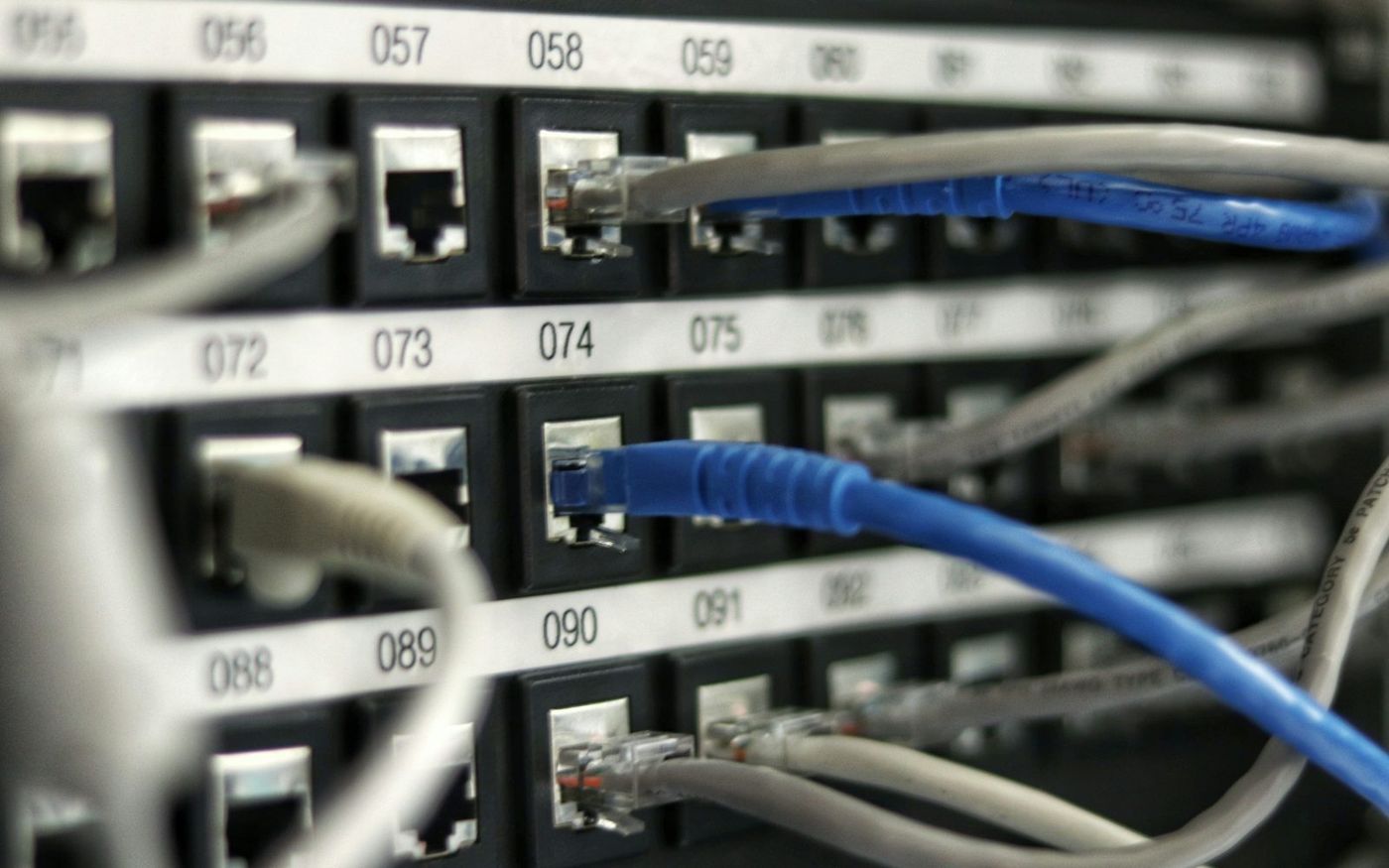
Each finding opens on the frame it came from, so the engineer sees the port, the cord and the label together.
iii · Drift uplink · patching
A faster way to find uplink or patching drift
Uplinks on the wrong port, an empty port the diagram still counts, a cord that runs to a different switch: flagged for review in one pass.
A cleaner core switch migration
Use one cabinet to compare your expected topology with the physical path in front of the team.
- 01Which port to inspectThree ports, located by switch, U and port number.answered
- 02Which diagram is staleThree links on the diagram no longer match the cabinet.answered
- 03Which change is safe to runUplinks confirmed port by port before the cutover.answered
Scenario. A team preparing a core switch migration finds mismatched uplinks before the migration window: fewer surprises, cleaner execution, stronger confidence.
Bring one cabinet. We’ll check it against the diagram
One sweep of one cabinet shows where your topology and your cabling still agree, and where they don’t.
Capture · detect · compare · validate · update